Rosbag replay simulation#
Preparation#
Download and unpack a sample map.
- You can also download the map manually.
gdown -O ~/autoware_map/ 'https://docs.google.com/uc?export=download&id=1A-8BvYRX3DhSzkAnOcGWFw5T30xTlwZI'
unzip -d ~/autoware_map/ ~/autoware_map/sample-map-rosbag.zip
Download the sample rosbag files.
- You can also download the rosbag files manually.
gdown -O ~/autoware_map/ 'https://docs.google.com/uc?export=download&id=1sU5wbxlXAfHIksuHjP3PyI2UVED8lZkP'
unzip -d ~/autoware_map/ ~/autoware_map/sample-rosbag.zip
Check if you have
~/autoware_datafolder and files in it.$ cd ~/autoware_data $ ls -C -w 30 image_projection_based_fusion lidar_apollo_instance_segmentation lidar_centerpoint tensorrt_yolo tensorrt_yolox traffic_light_classifier traffic_light_fine_detector traffic_light_ssd_fine_detector yabloc_pose_initializerIf not, please, follow Manual downloading of artifacts.
Info
- Sample map and rosbag: Copyright 2020 TIER IV, Inc.
- Due to privacy concerns, the rosbag does not contain image data, which will cause:
- Traffic light recognition functionality cannot be tested with this sample rosbag.
- Object detection accuracy is decreased.
How to run a rosbag replay simulation#
If you prefer a graphical user interface (GUI) over the command line for launching and managing your simulations, refer to the Using Autoware Launch GUI section at the end of this document for a step-by-step guide.
Launch Autoware.
source ~/autoware/install/setup.bash
ros2 launch autoware_launch logging_simulator.launch.xml map_path:=$HOME/autoware_map/sample-map-rosbag vehicle_model:=sample_vehicle sensor_model:=sample_sensor_kit
Note that you cannot use
~instead of$HOMEhere.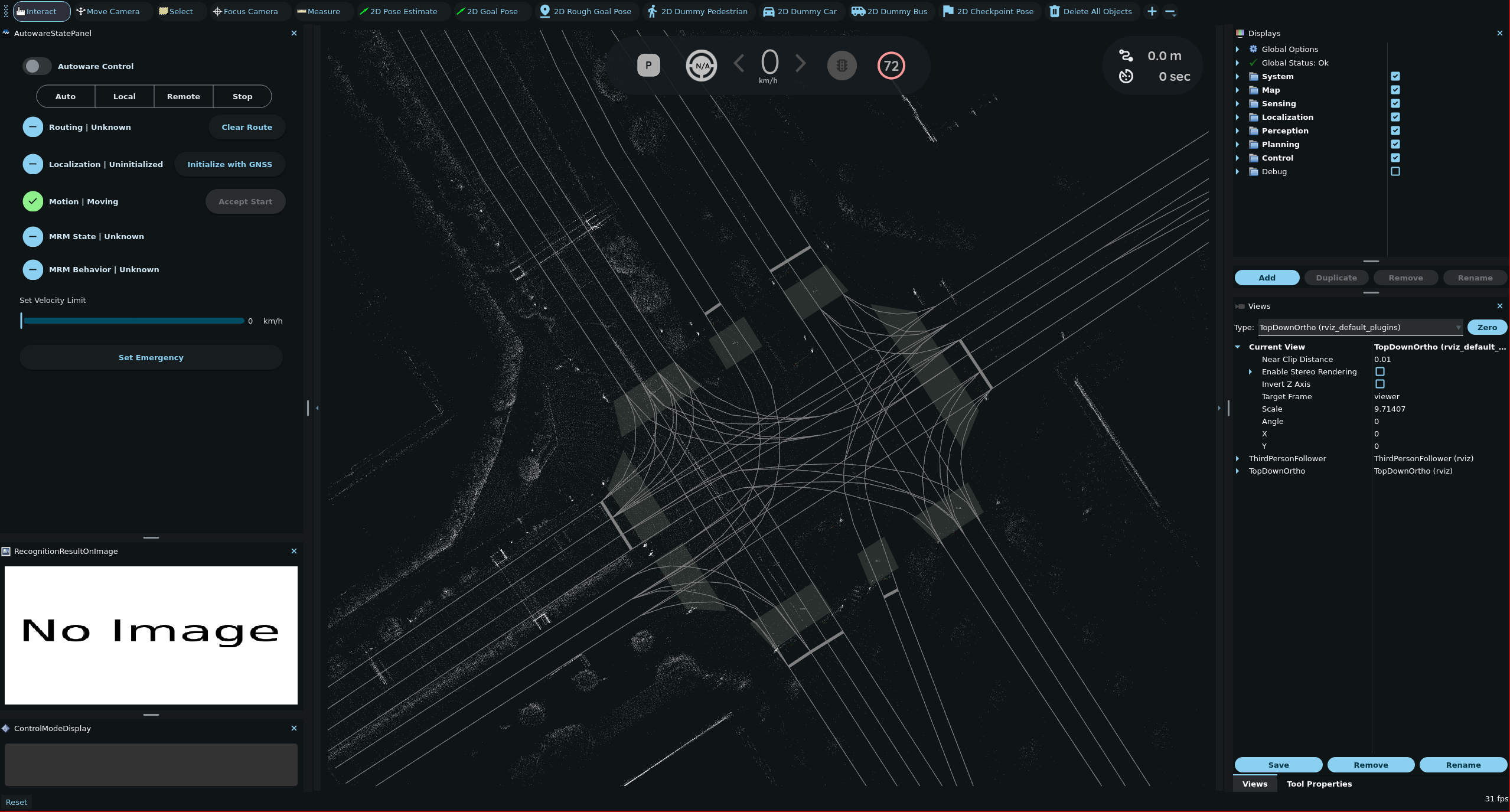
⚠️ You might encounter error and warning messages in the terminal before playing the
rosbag. This is normal behavior. These should cease once therosbagis played and proper initialization takes placePlay the sample rosbag file.
source ~/autoware/install/setup.bash
ros2 bag play ~/autoware_map/sample-rosbag/ -r 0.2 -s sqlite3
⚠️ Due to the discrepancy between the timestamp in the
rosbagand the current system timestamp, Autoware may generate warning messages in the terminal alerting to this mismatch. This is normal behavior.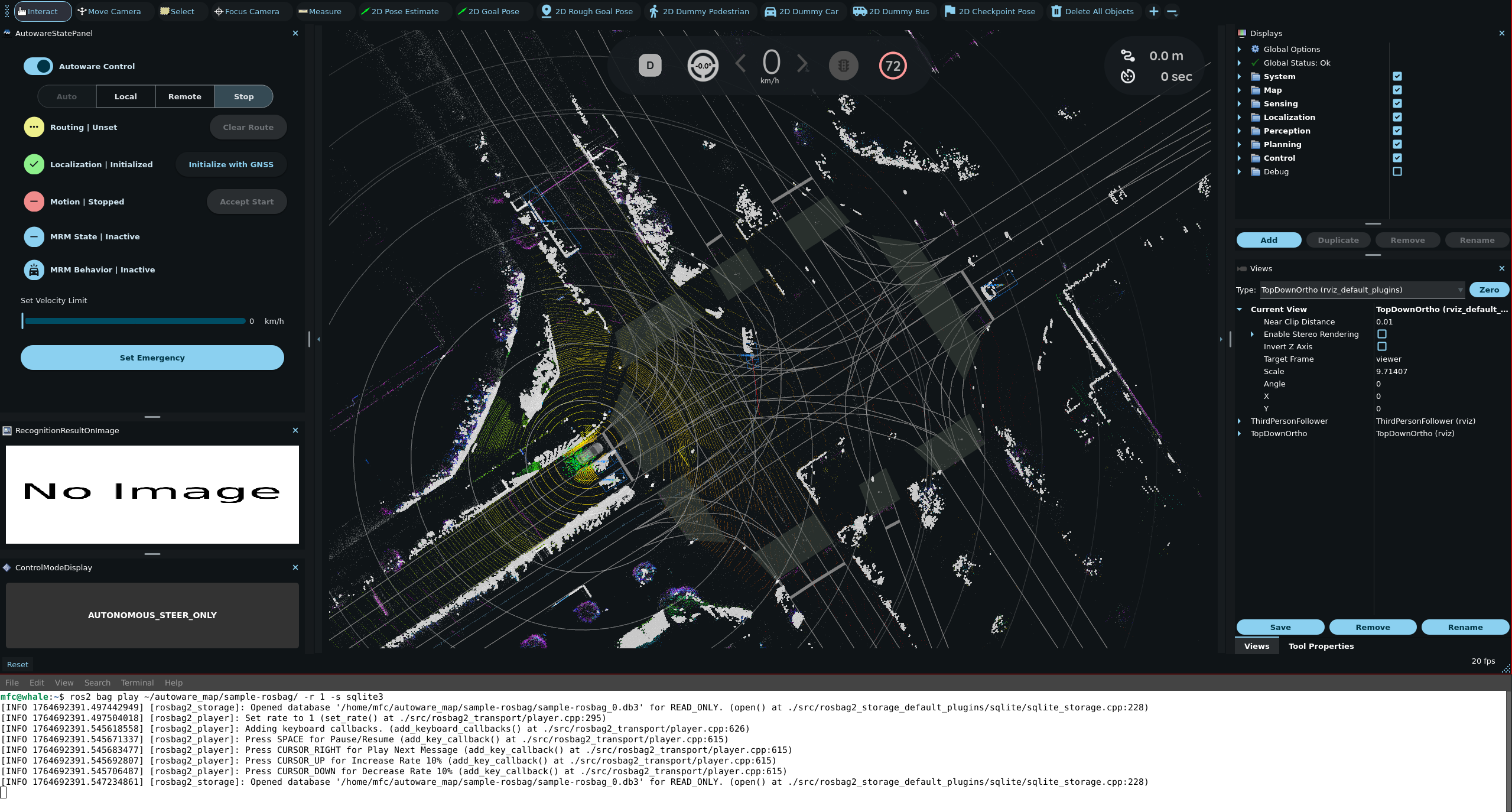
To focus the view on the ego vehicle, change the
Target Framein the RViz Views panel fromviewertobase_link.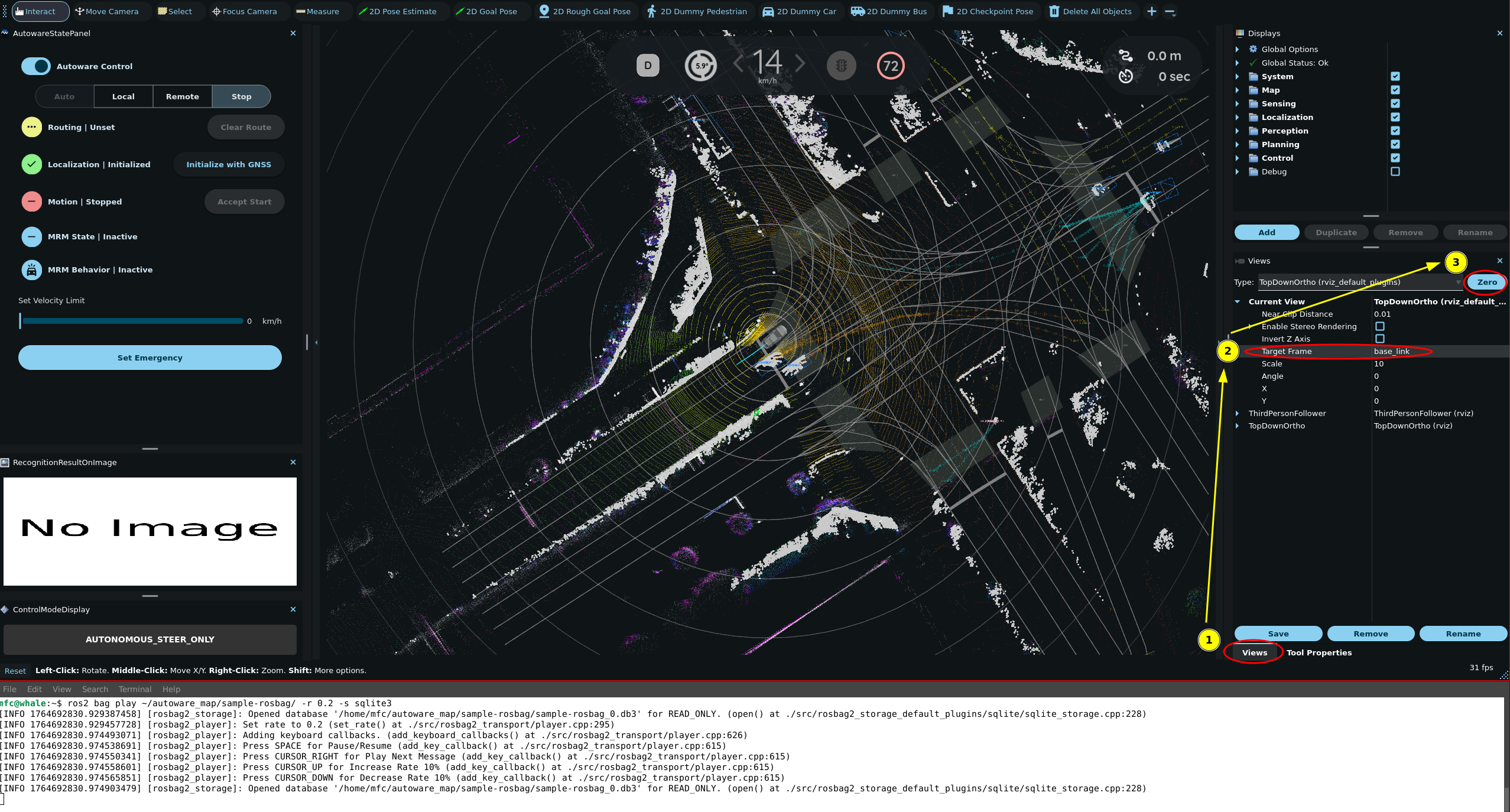
To switch the view to
Third Person Followeretc, change theTypein the RViz Views panel.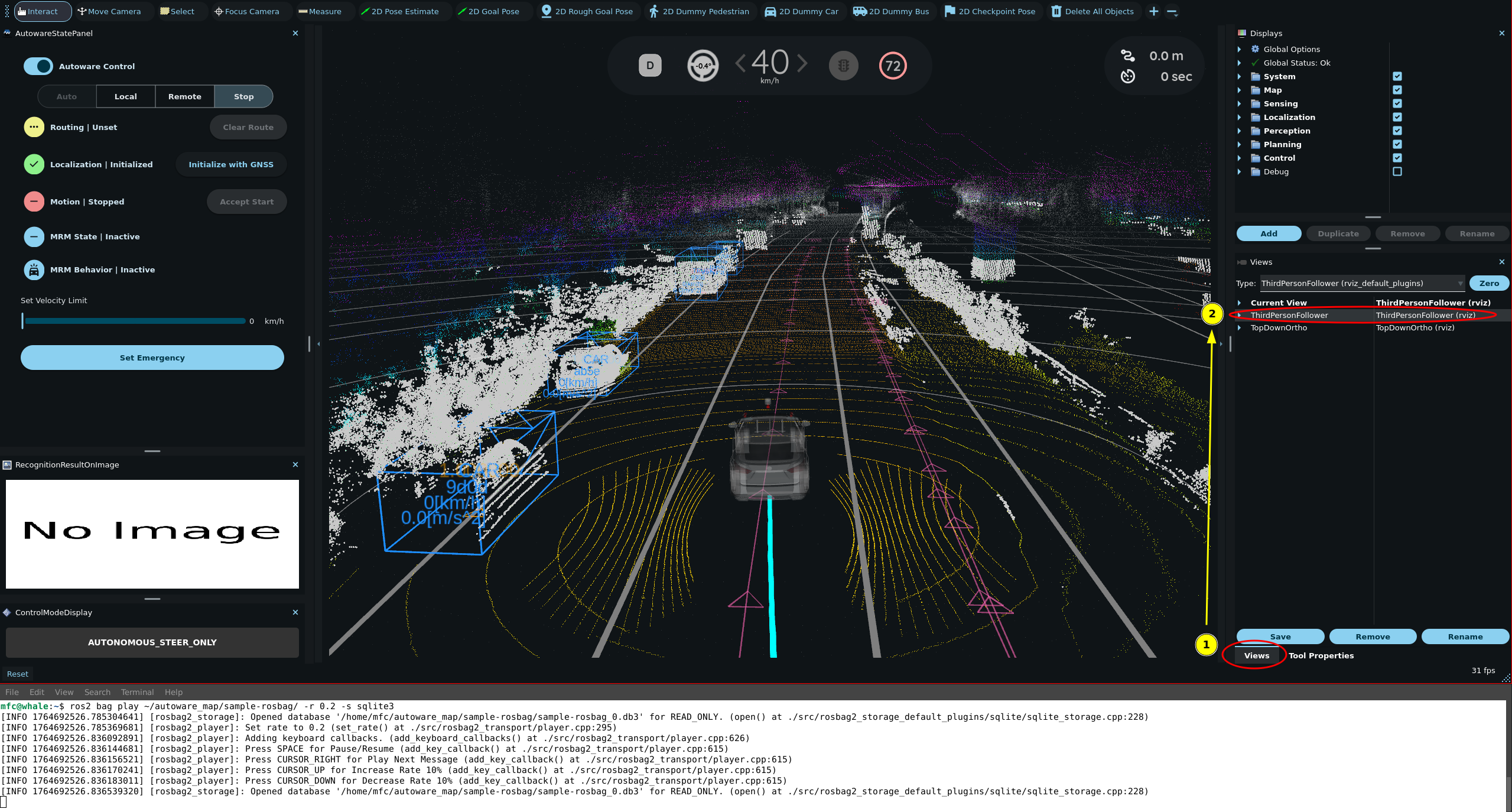
Using Autoware Launch GUI#
This section provides a step-by-step guide for using the Autoware Launch GUI to launch and manage your rosbag replay simulation. offering an alternative to the command-line instructions provided in the previous section.
Getting Started with Autoware Launch GUI#
Installation: Ensure you have installed the Autoware Launch GUI. Installation instructions.
Launching the GUI: Open the Autoware Launch GUI from your applications menu.
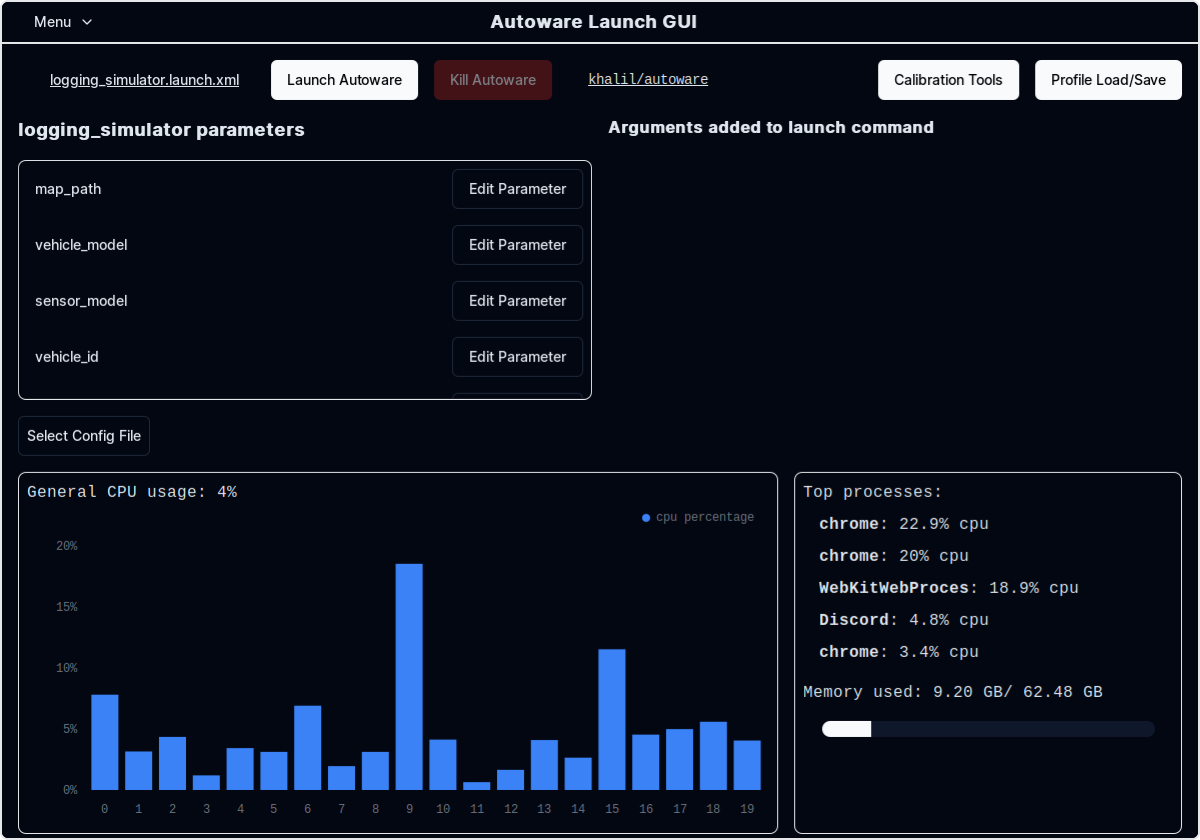
Launching a Logging Simulation#
- Set Autoware Path: In the GUI, set the path to your Autoware installation.
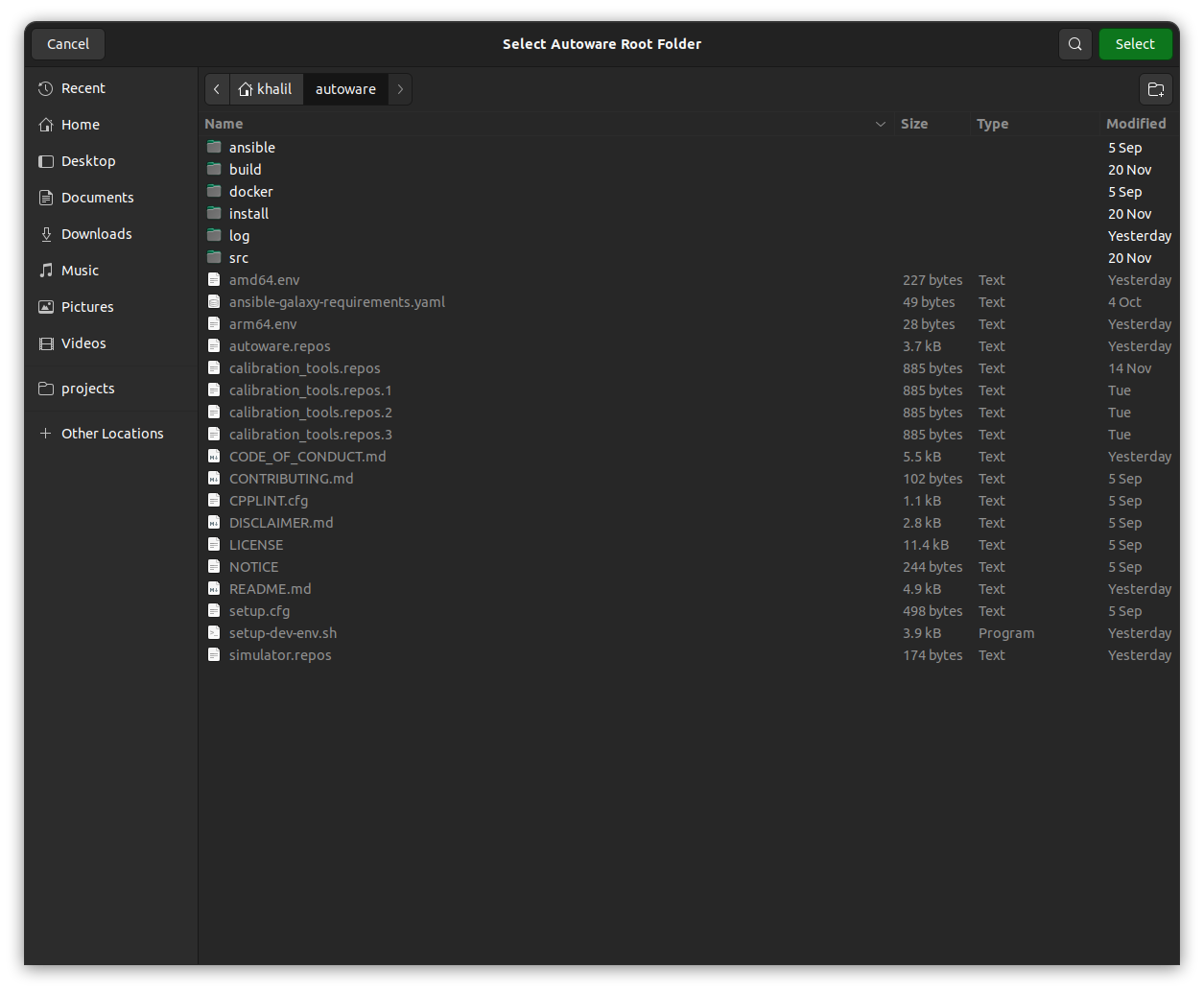
- Select Launch File: Choose
logging_simulator.launch.xmlfor the lane driving scenario.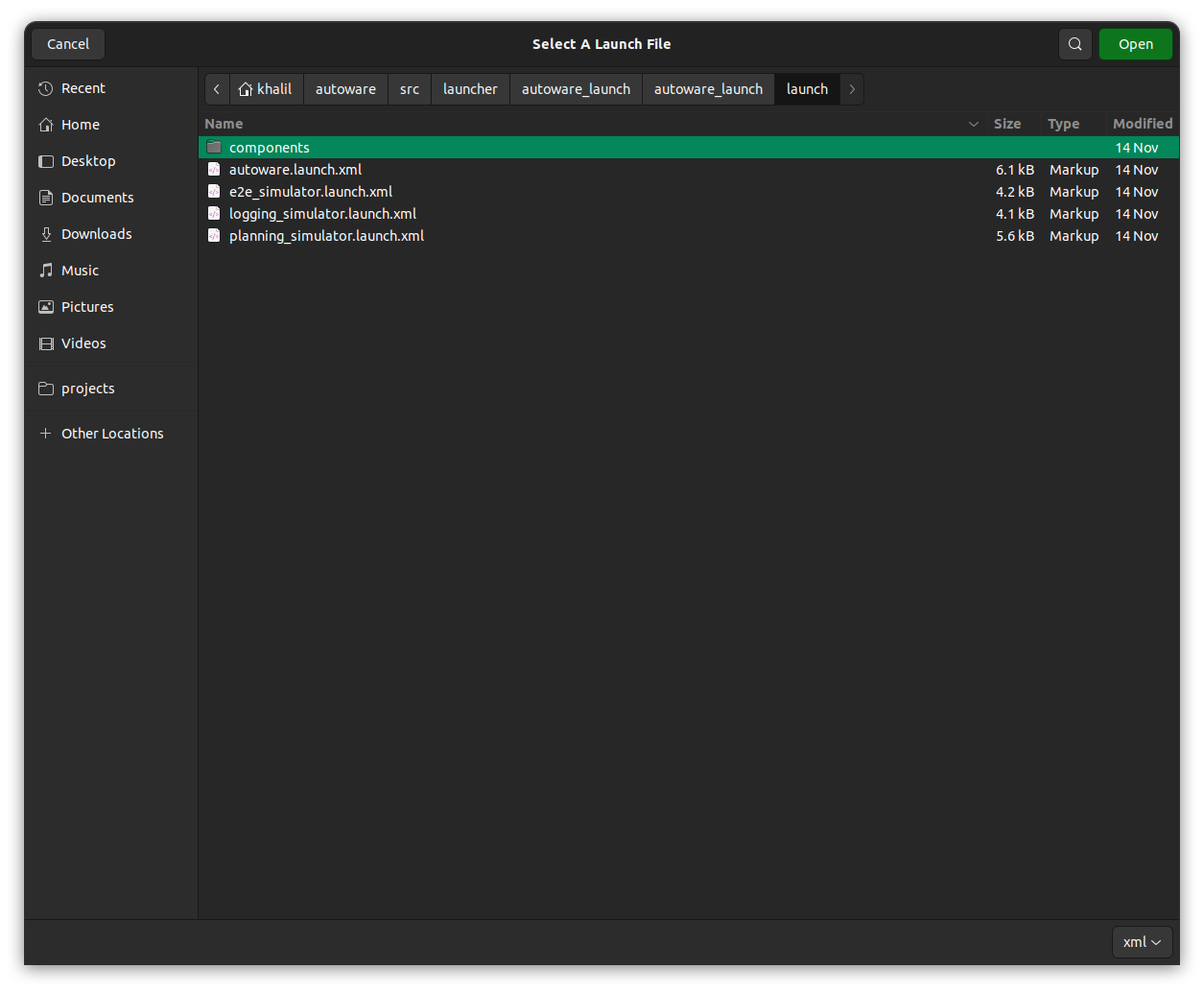
Customize Parameters: Adjust parameters such as
map_path,vehicle_model, andsensor_modelas needed.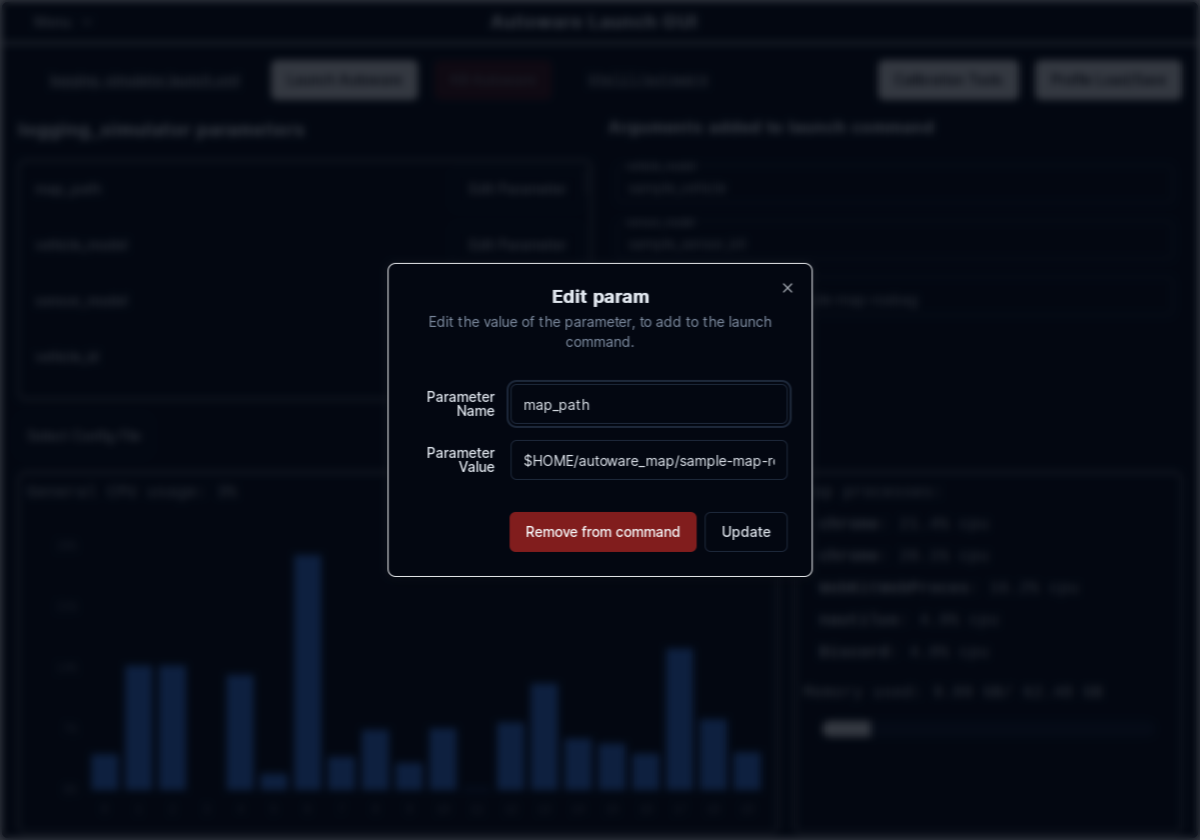
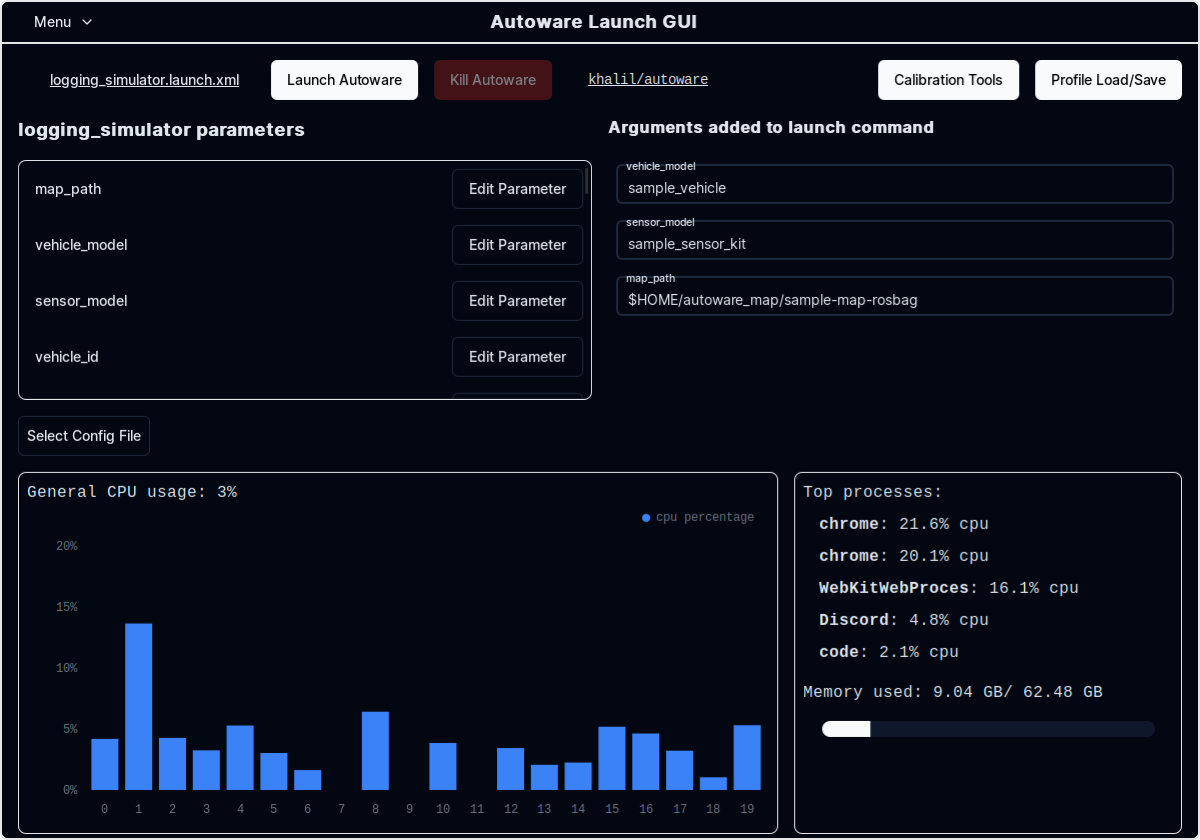
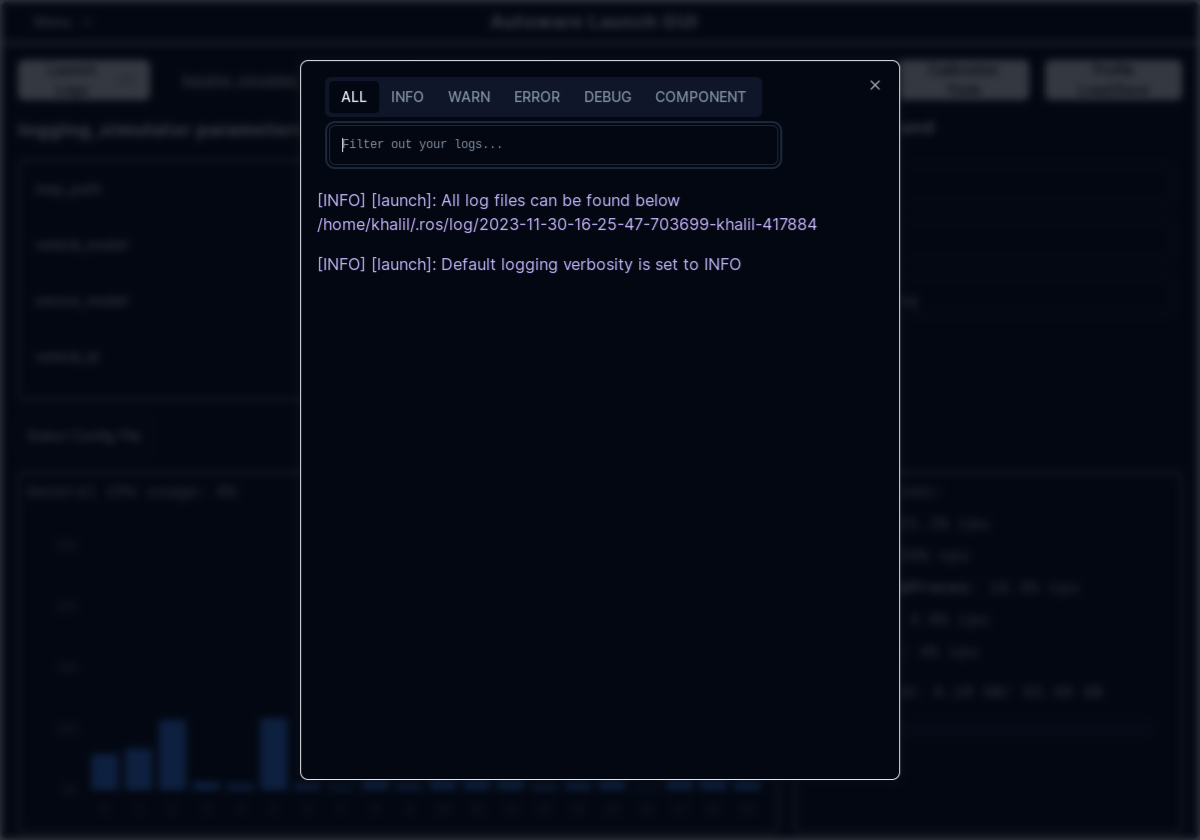
Start Simulation: Click the launch button to start the simulation and have access to all the logs.
Play Rosbag: Move to the
Rosbagtab and select the rosbag file you wish to play.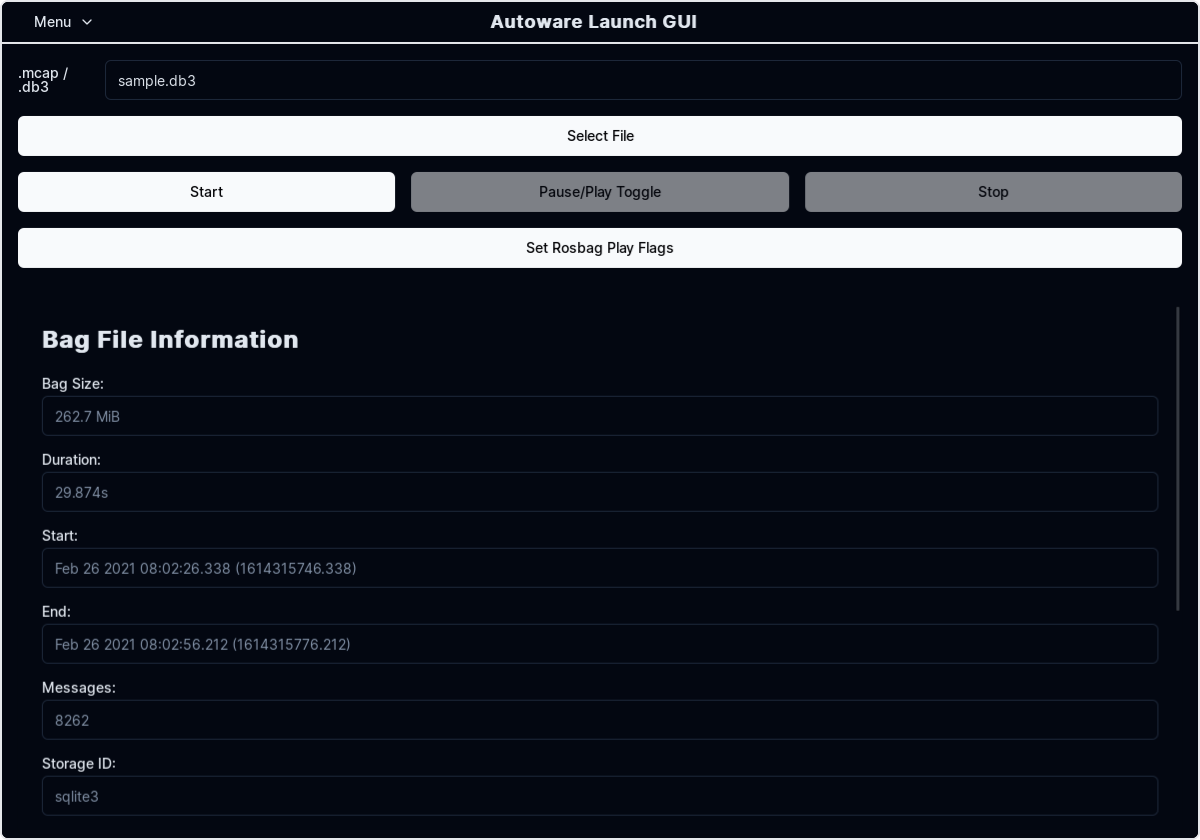
Adjust Playback Speed: Adjust the playback speed as needed and any other parameters you wish to customize.
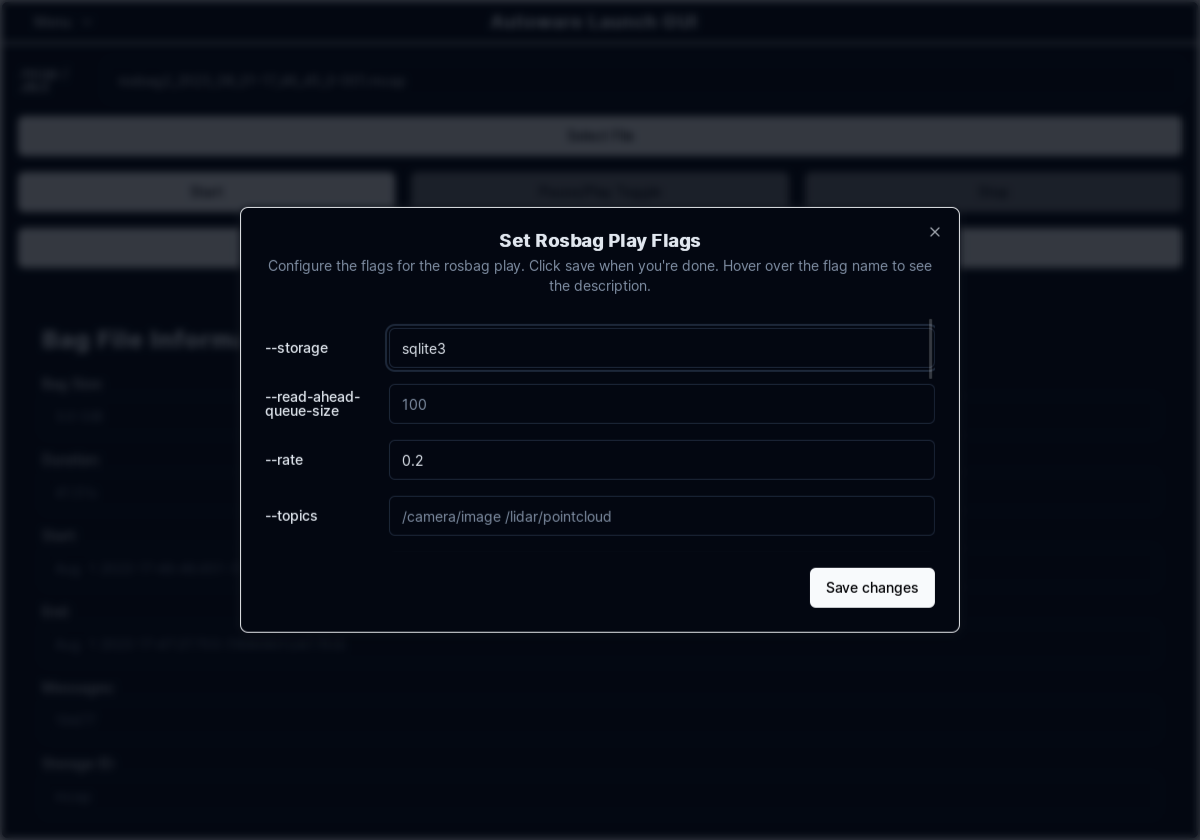
Start Playback: Click the play button to start the rosbag playback and have access to settings such as
pause/play,stop, andspeed slider5.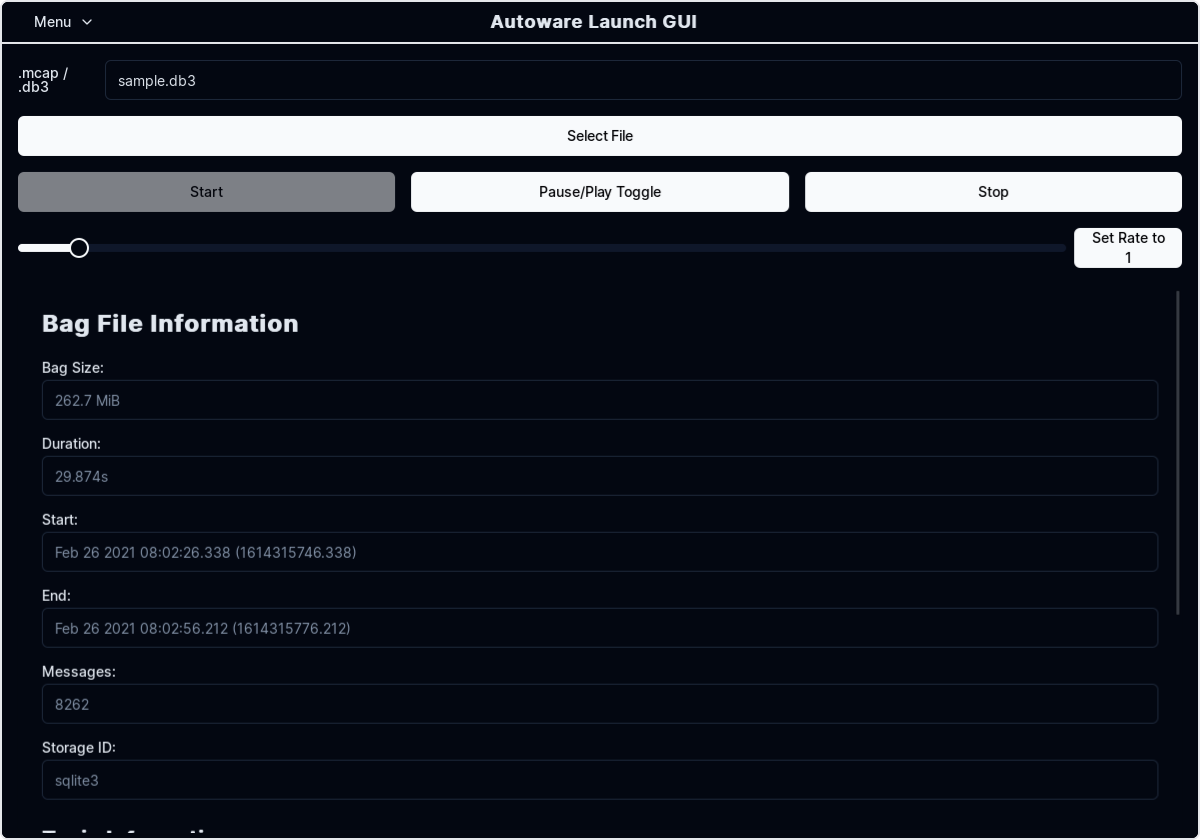
View Simulation: Move to the
RVizwindow to view the simulation.To focus the view on the ego vehicle, change the
Target Framein the RViz Views panel fromviewertobase_link.To switch the view to
Third Person Followeretc, change theTypein the RViz Views panel.