Autoware Core digital twin simulation with AWSIM#
Installing Autoware#
This page describes the procedure for an environment where Autoware Core is already installed. If you have not yet installed Autoware Core, refer to the source installation, the Docker installation, or the Debian package installation guide.
Download AWSIM#
Download following files from this page.
- AWSIM-Demo.zip
- Shinjuku-Map.zip
Extract the downloaded files. This page assumes the files are placed in the following paths.
- $HOME/Downloads/AWSIM-Demo
- $HOME/Downloads/Shinjuku-Map
Start simulation#
Launch Autoware according to the section below depending on your installation type.
- Launch Autoware for Docker installation
- Launch Autoware for source installation
- Launch Autoware for Debian Package installation
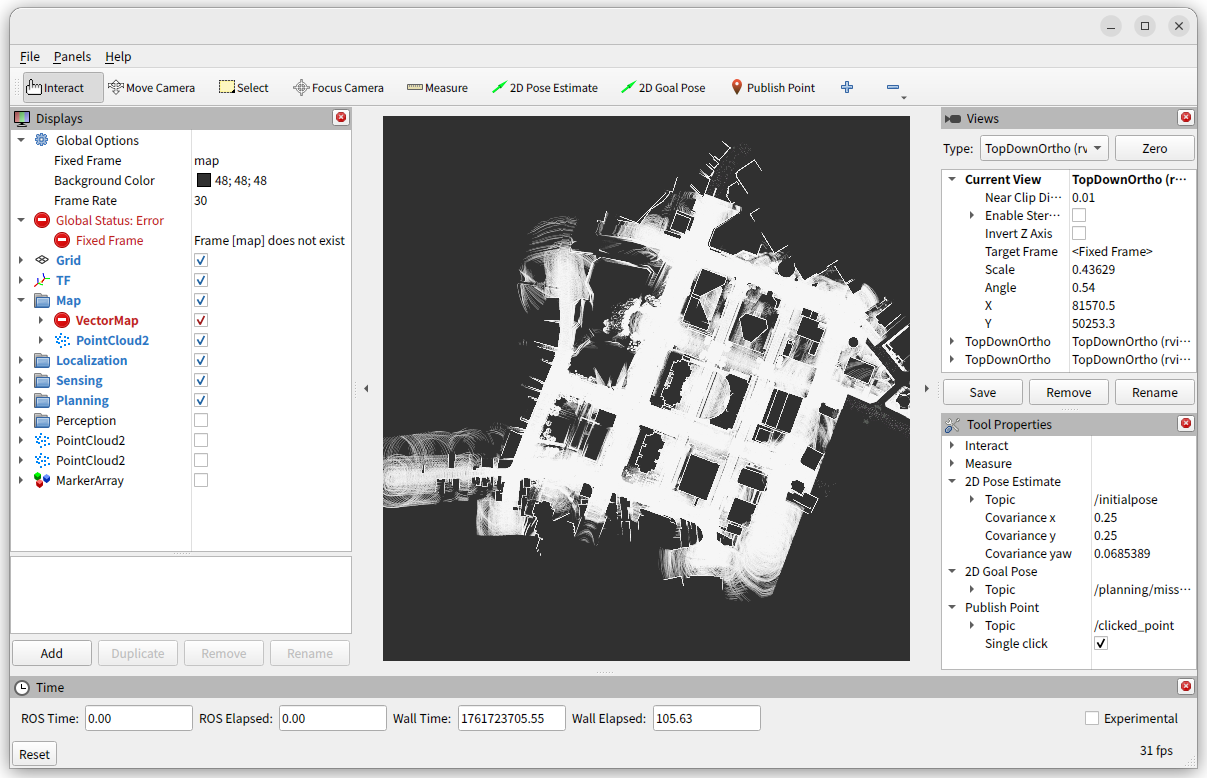
The map will be displayed in Rviz as shown below.
Launch AWSIM.
cd $HOME/Downloads/AWSIM-Demo
./AWSIM-Demo.x86_64
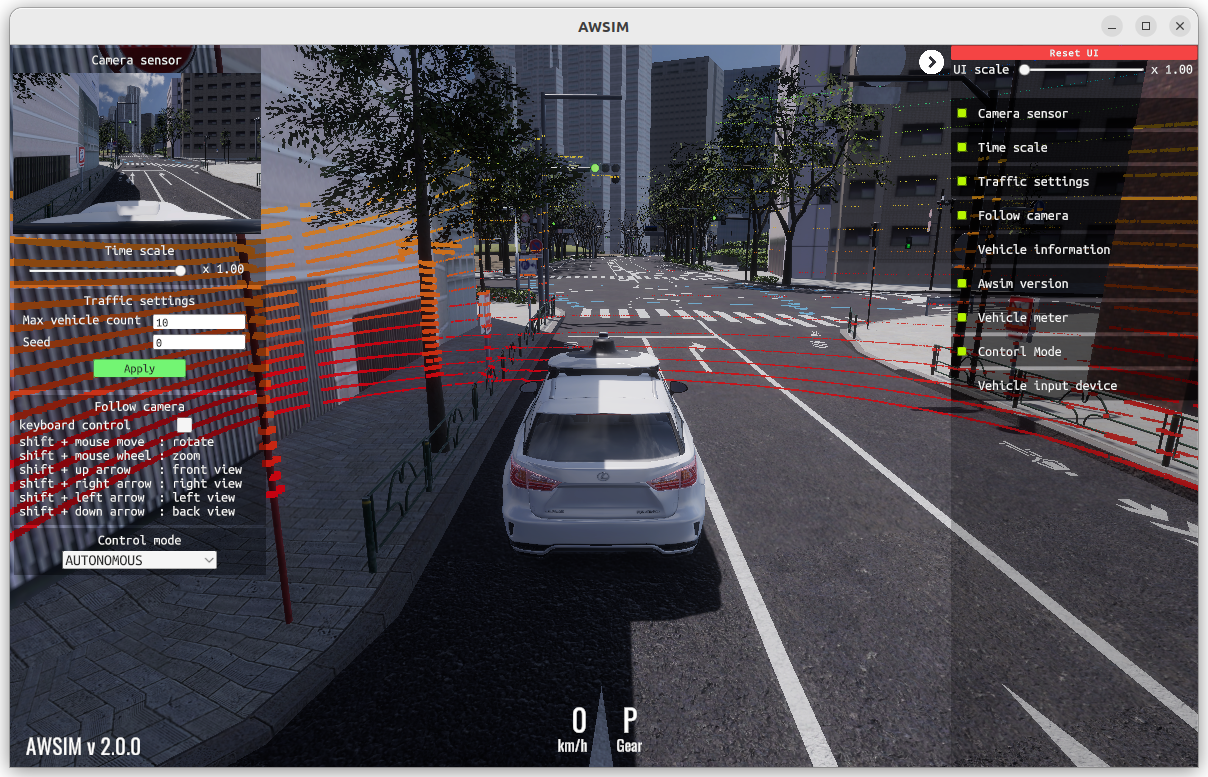
The AWSIM will be displayed as shown below.
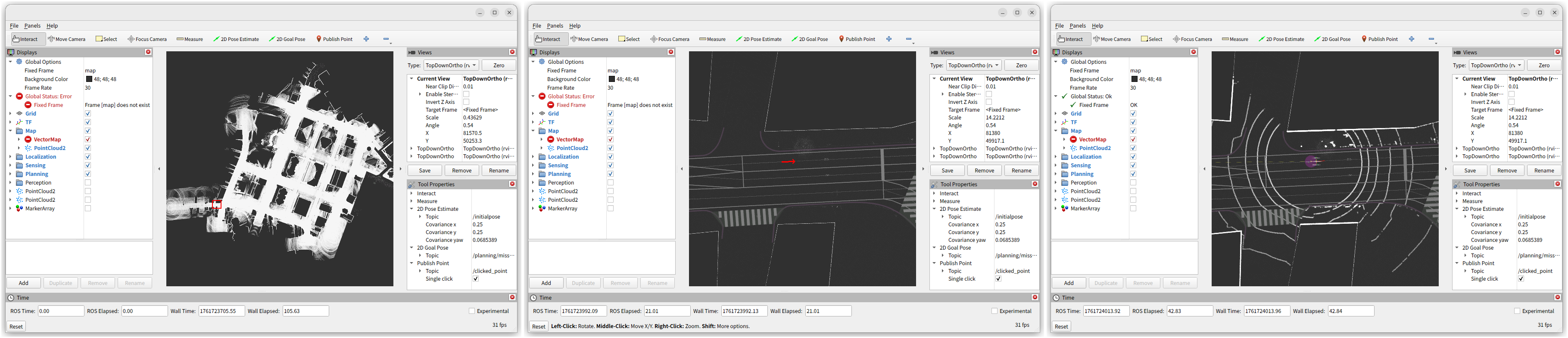
Initialize pose. Select "2D Pose Estimate" and drag the mouse as shown by the arrow.
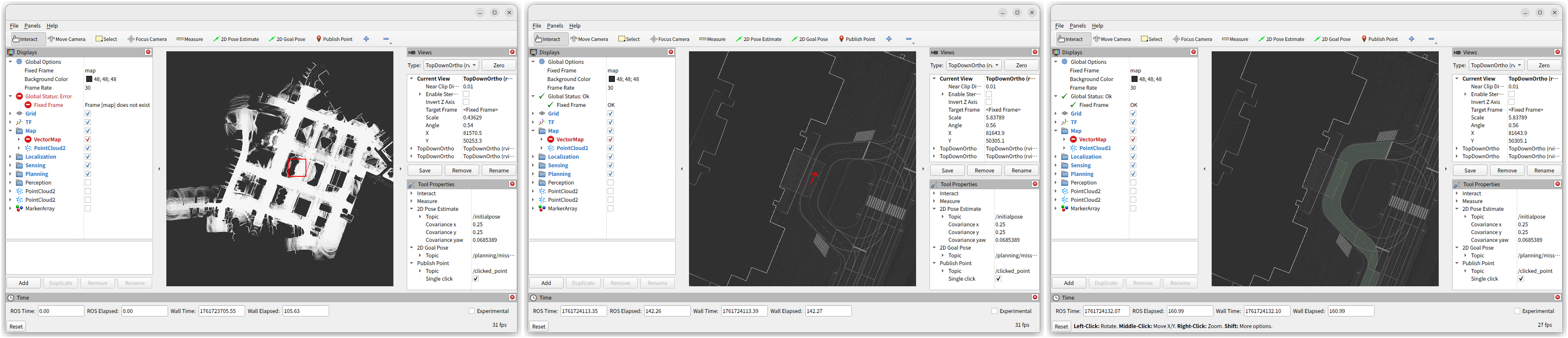
Set goal pose. Select "2D Goal Pose" and drag the mouse as shown by the arrow.
Start autonomous driving. Autoware Core does not include the operation mode manager of Autoware Universe, so publish the operation mode and the gear command by hand. Open a new terminal and set up the same environment that you used to launch Autoware:
For a Docker installation, open a shell in the running container and source the setup files:
docker exec -it autoware-core bash
source /opt/ros/humble/setup.bash
source /opt/autoware/setup.bash
For a source installation, source the workspace:
source $HOME/autoware_core_workspace/install/setup.bash
For a Debian package installation, source ROS 2:
source /opt/ros/humble/setup.bash
Then run these commands:
ros2 topic pub /system/operation_mode/state autoware_adapi_v1_msgs/msg/OperationModeState \
  "{mode: 2, is_autoware_control_enabled: true, is_autonomous_mode_available: true}" \
  --once --qos-durability transient_local

ros2 topic pub /control/command/gear_cmd autoware_vehicle_msgs/msg/GearCommand "command: 2" \
  --once --qos-durability transient_local
Launch Autoware for Docker installation#
Run the following command.
xhost +local:
docker run --rm -it --name autoware-core --net host -e DISPLAY=$DISPLAY -v $HOME/Downloads/Shinjuku-Map/map:/home/aw/autoware_data/maps ghcr.io/autowarefoundation/autoware:core-humble
Run the following command in the docker container.
ros2 launch autoware_core autoware_core.launch.xml use_sim_time:=true map_path:=/home/aw/autoware_data/maps vehicle_model:=autoware_sample_vehicle sensor_model:=autoware_awsim_sensor_kit
Launch Autoware for source installation#
Run the following command.
cd $HOME/autoware_core_workspace
source install/setup.bash
ros2 launch autoware_core autoware_core.launch.xml use_sim_time:=true map_path:=$HOME/Downloads/Shinjuku-Map/map vehicle_model:=autoware_sample_vehicle sensor_model:=autoware_awsim_sensor_kit
Launch Autoware for Debian Package installation#
Run the following command.
source /opt/ros/humble/setup.bash
ros2 launch autoware_core autoware_core.launch.xml use_sim_time:=true map_path:=$HOME/Downloads/Shinjuku-Map/map vehicle_model:=autoware_sample_vehicle sensor_model:=autoware_awsim_sensor_kit