Parking scenario#
In this scenario, the ego vehicle drives on the road to a parking lot and parks in a parking space. The sample map has one parking lot with five parking spaces.
Autoware uses two planning scenarios for this drive:
- The
LaneDrivingscenario follows the lanes of the road. - The
Parkingscenario plans a free-space path inside the parking lot. Theautoware_freespace_plannerpackage makes this path with a hybrid A* search. The path can have forward and reverse parts.
The autoware_scenario_selector node selects the scenario. It switches to Parking when the ego vehicle is in the parking lot, the goal is not on a lane, and the ego vehicle has stopped in autonomous mode.
1. Launch Autoware#
Launch the planning simulator with the sample map, as described in Planning simulation.
2. Set an initial pose and a goal pose#
- Set an initial pose on a lane near the parking lot. For the steps, see Lane driving scenario.
- Click the
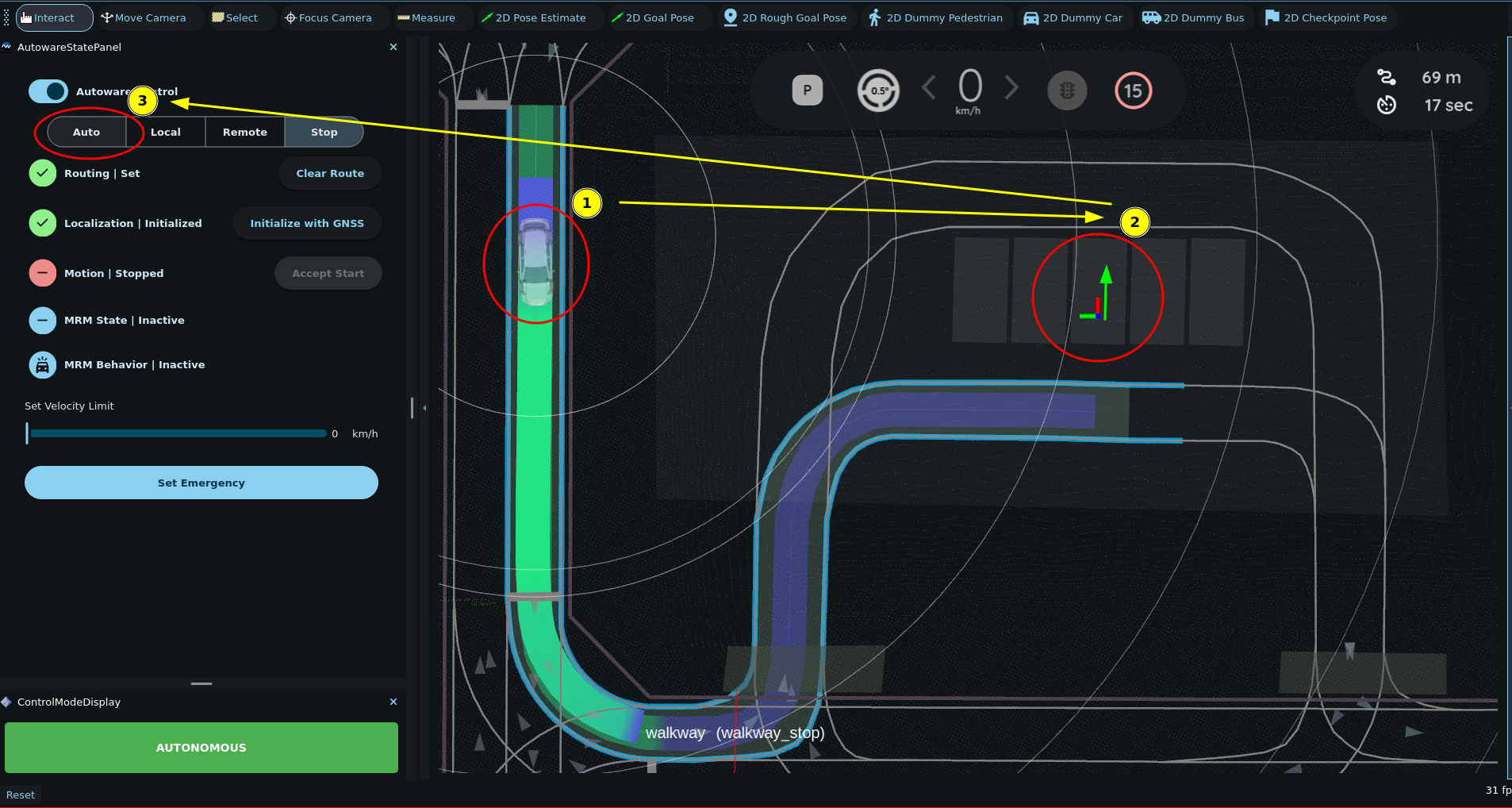
2D Goal Posebutton in the toolbar, or press theGkey. - In the 3D View pane, click and drag in one of the parking spaces to set the goal pose. The arrow sets the direction of the parked vehicle.
Autoware plans a route on the lanes to the parking lot.
3. Engage the ego vehicle#
Click the Auto button in the AutowareStatePanel. Then the drive goes through these stages:
- The ego vehicle drives on the lanes into the parking lot, and then it stops.
- The scenario changes from
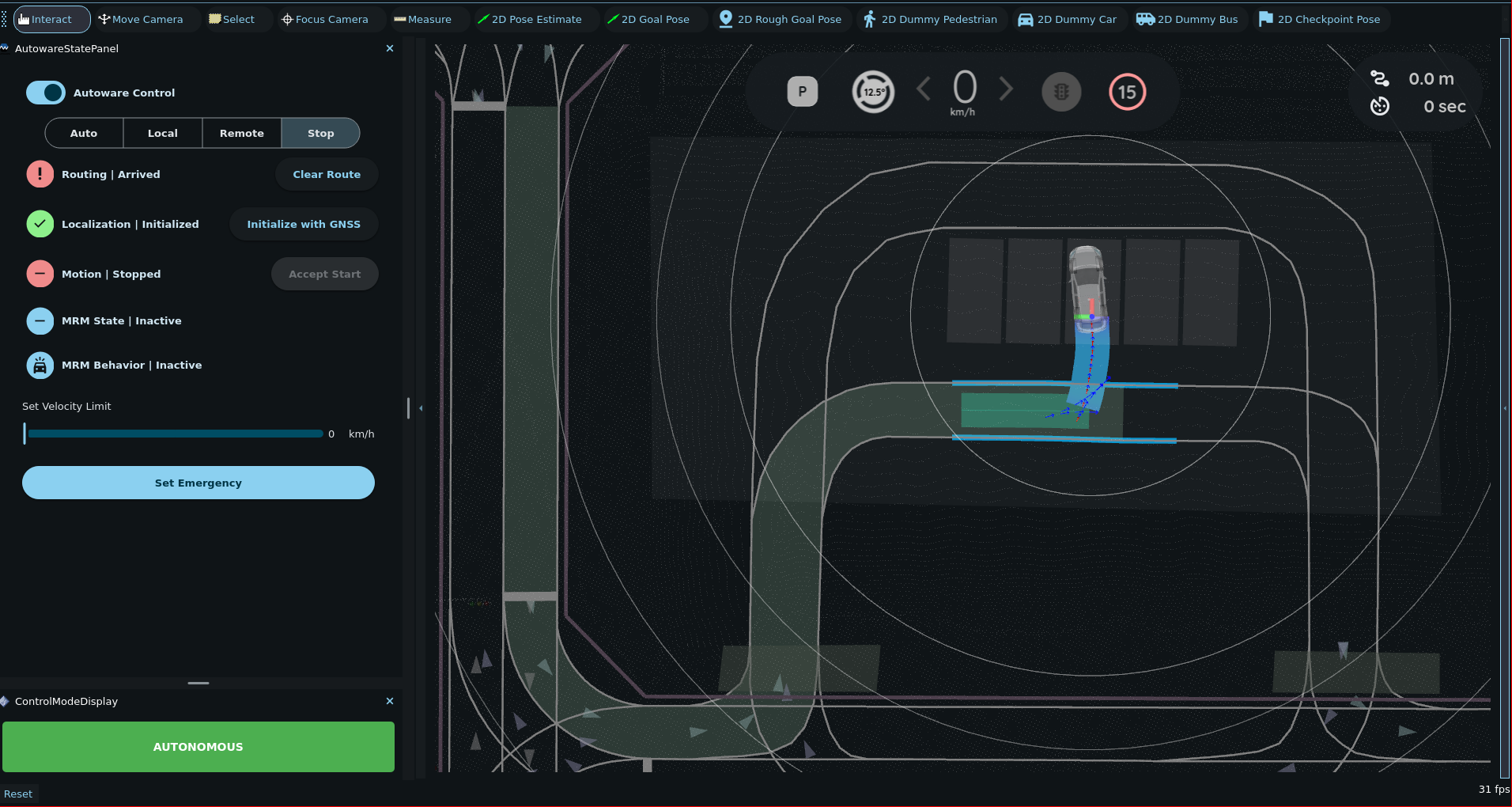
LaneDrivingtoParking. The free-space planner plans a path into the parking space. - The ego vehicle maneuvers into the parking space. If the path has a reverse part, the ego vehicle stops and changes the gear before it reverses.
When the ego vehicle reaches the goal, the Routing state in the AutowareStatePanel changes to Arrived.
Note
The parking scenario is enabled by default. The launch_parking_module option in the planning module preset turns it on or off.