Placing dummy objects#
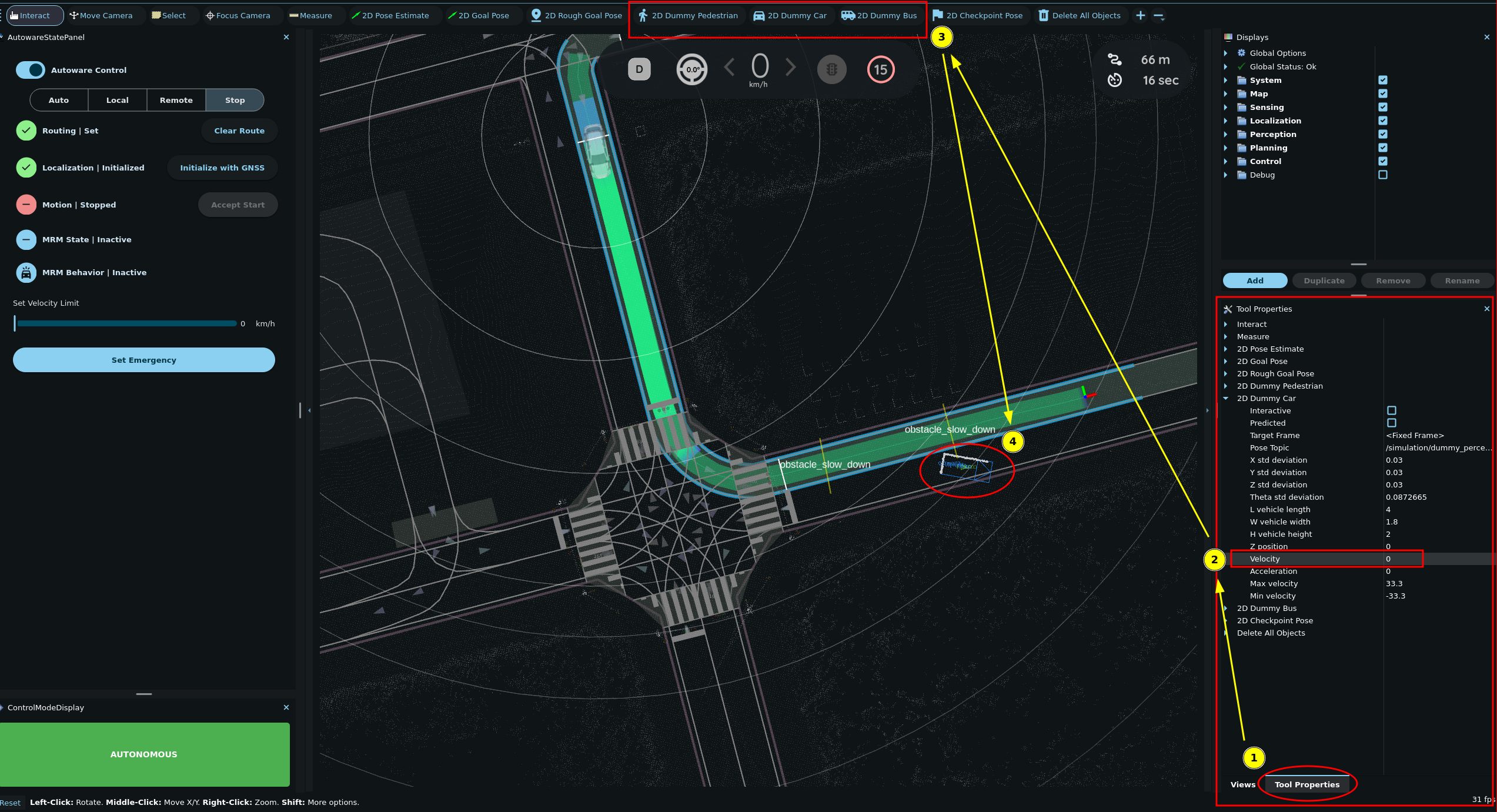
- Click the
2D Dummy Caror2D Dummy Pedestrianbutton in the toolbar. - Set the pose of the dummy object by clicking and dragging on the map.
- Set the velocity of the object in
Tool Properties -> 2D Dummy Car/Pedestrianpanel.
Note
Changes to the velocity parameter will only affect objects placed after the parameter is changed.
Delete all dummy objects
Click the Delete All Objects button in the toolbar and then click anywhere in the 3D View pane to complete it.
Placing interactive dummy objects#
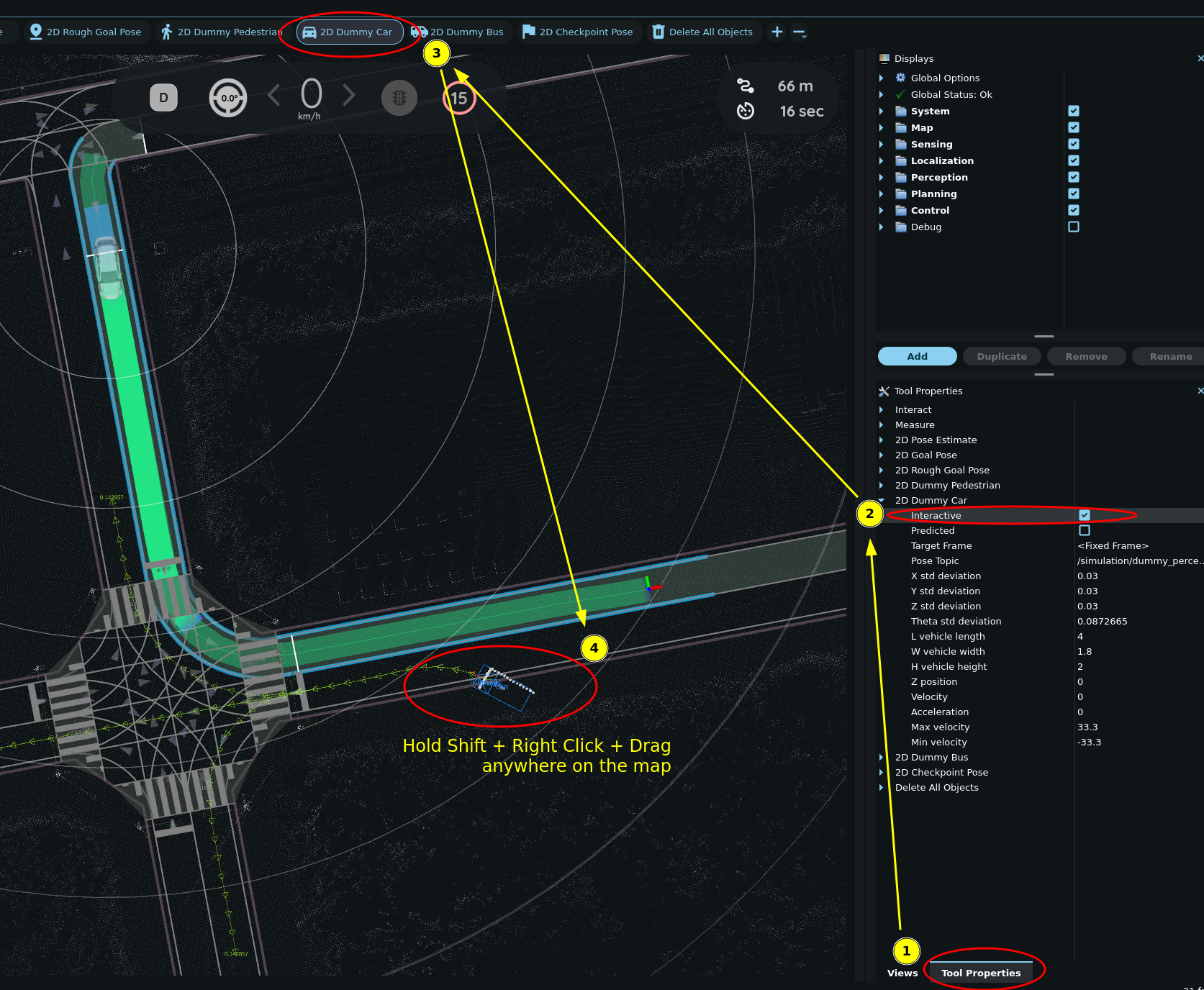
Interactive mode is a property of each dummy object tool. It is off by default.
- Open the
Tool Propertiespanel. - Expand the tool of the object type, for example
2D Dummy Car. - Select the
Interactivecheckbox. - Click the same tool in the toolbar.
Info
- Add an interactive dummy object: Shift+🖱️ Right Click on the map.
- Delete an interactive dummy object: Alt+🖱️ Right Click on the object.
- Move an existing interactive dummy object: 🖱️ Right Click and hold on the object. Then drag and drop it to the desired location.